
Getting your API Key from AskFetch.com
Log into AskFetch, click your name in the bottom right corner
Click API Console, then click API Keys, then click Create API Key.
Give it a name like ‘My Website’, check both the Quotes and Helpers checkboxes, then click Create Key.
Copy your new API Key to paste into your website settings
Connect AskFetch to your website
To activate your AskFetch integration with your GravityCerts website, follow these steps:
Log into your website Dashboard.
From your website admin dashboard, click View Integrations. Or from the left navigation menu go to Forms => Settings, then click GravityCerts.
Locate the integration section for AskFetch:
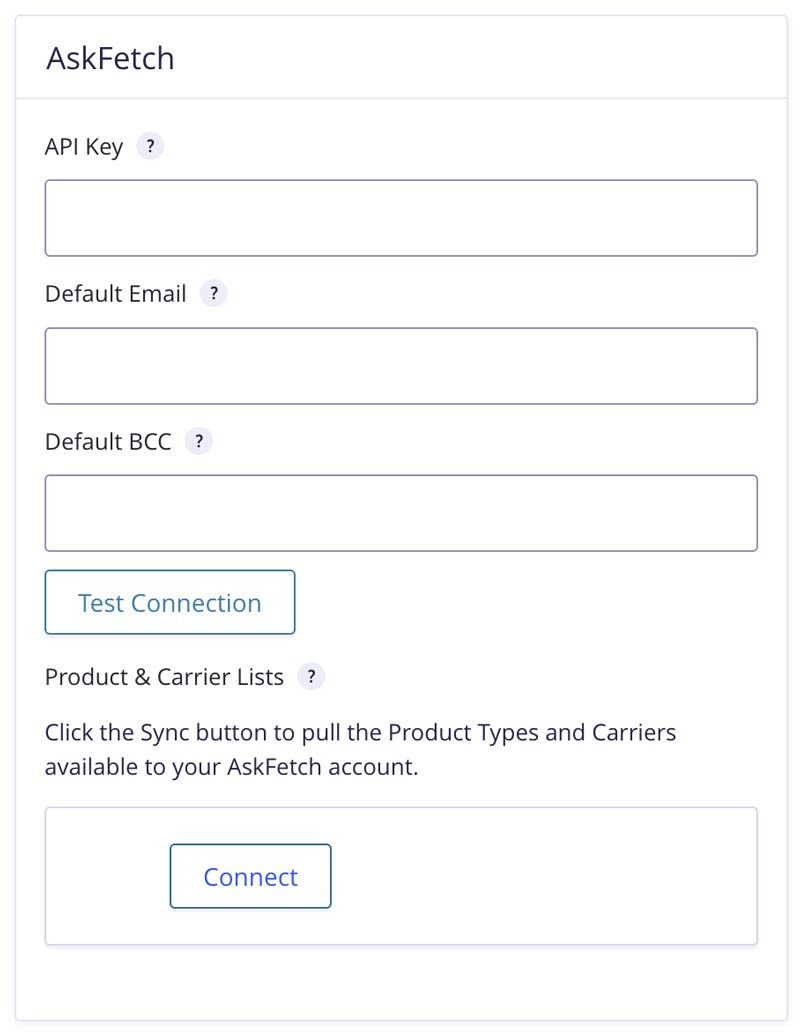
Paste your AskFetch API Key into the settings
Enter your AskFetch admin user email, then click Test Connection.
If the API Key and email are both correct, you will see a Success message. Then click Connect.
Make sure to scroll to the bottom of the page and click Save Settings.
Default BCC: By default, email notifications of new AskFetch quotes are sent from the website to the Default Email. Enter a comma separated list of emails in this field, to send additional quote notification emails.
The Default Email and Default BCC settings applies to all forms with an active AskFetch integration feed. This can be overridden on individual feed settings configurations.
Next Article: How to send form submissions to AskFetch