
After finishing your integration connection, you are now ready to create the feeds necessary to send individual form submission to AskFetch.com. This is done by creating a GravityCerts feed for each form you wish to send to AskFetch.
View your list of Forms by clicking Forms in the admin menu.
In your forms list, hover your mouse over your desired form, then hover over Settings => click GravityCerts.

Click the Add New button to create a new feed.

Give your new feed a descriptive name, such as Send home quote to AskFetch.
Select the Action, AskFetch.
After selecting your Action, all the available feed mapping fields will display.
Map your form fields to the available AskFetch fields.
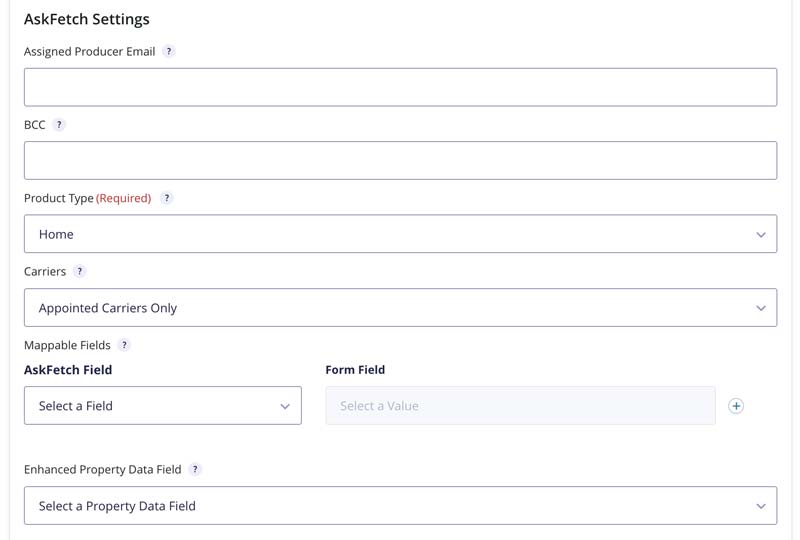
Assigned Producer Email: Leave blank for the default global settings, or override this with a different AskFetch user email.
BCC: Leave blank for the default global settings, or override this with a different comma separated list of emails that should receive the quote notifications emails.
Product Type: For now this is always set to Home. As AskFetch extends their quote offerings to other lines of business, our API integration will update accordingly.
Carriers: Choose to display home quotes only for carriers your agency is appointed with, or display all carriers AskFetch can get quotes for. Default is Appointed Carriers Only.
Mappable Fields: Map the AskFetch fields to your form fields.
Required AskFetch fields for successful quoting include:
- Insured First Name
- Insured Last Name
- Insured Email
- Insured Date of Birth
- Insured Phone
- Ownership: Individual, Trust, Estate, LLC
- Street Address
- City
- State
- Zipcode
- Effective Date
- Dwelling Coverage A
- Roof Year / Roof Age
- Roof Type: 3-Tab Shingle, Metal, Tile, Flat, Architectural
- Roof Shape: Gable, Hip, Flat, Other
- Square Feet
- Year Built
- Protection Class: 8 or less, 9, 10
- Construction Type: Frame, Masonry, Masonry Veneer, Superior
- Dwelling Type: Single Family, Duplex, Triplex, Quadplex, Row or Town House, Modular Home
- Usage: Primary, Rental, Seasonal, Secondary, Vacant
Enhanced Property Data Field: If your website includes Enriched Property Data, select your property data form field. We’ll pre-fill the available fields above with the enriched property data.
Enable conditional logic for Florida properties only
If you are licensed to write home insurance in more than just Florida, you may enable conditional logic on this feed so properties outside of Florida are NOT sent to AskFetch.com.
Locate the Feed Condition box at the bottom of the feed settings, then click Enable Condition.
Set the execution of the feed to run if the Property Address is Florida.

Make sure to click Save Settings when you’re done!
Next Article: How to show quotes from AskFetch to users directly on your website