
GravityCerts enables agencies to create individual feeds for any of your website forms to send information into your Agencyzoom Account. This enables you to create/update, leads and create/update opportunities.
If you have Not connected your Agencyzoom account yet, visit Enabling Agencyzoom Integration to get connected first. Then come back to this article.
Navigate to your website admin Forms.
Locate the form you want to use to send data to Agencyzoom from within the Forms List.
Create a New Agencyzoom Feed
Hover over the located form to display the available form settings. Hover over Settings, then click GravityCerts.

Click Add New to create a new feed.
Give your new feed a name such as “Create or Update New Lead in Agencyzoom“.
Choose the action AgencyZoom API.
Select the Action Type for this feed.
Action Types include:
- Create/Update Lead
- Create/Update Commercial Lead
- Create/Update Customer
- Create/Update Opportunity
- Create Task
- Create Lead/Customer Notes
- Change Pipeline Stage for Lead
After choosing your desires Action Type, follow the configuration settings to map the available form fields to your desires Agencyzoom settings.

Mapping Custom Fields
Agencyzoom Custom Fields may be mapped to form fields.
Select your Agencyzoom custom fields as the Key, and a form field value, entry meta value, or a custom value as the Value field.
To create a Custom Value, scroll to the bottom of the Value dropdown field and select Add Custom Value. This field will change from a dropdown into an open Text field. You may manually type your custom value or use any combination of merge tags by clicking {…} directly above the value field

Example using Drivers License merge tag

Adding Tags
You may include one or multiple tags in Agencyzoom by choosing Tag(s) from the Agencyzoom Key, then selecting an individual form field or custom value.
Separate each tag or tags with a comma.
Examples include:
- “tag 1, tag 2“
- “Home, Auto, Umbrella“
- Form field: Types of Insurance (Selected)
- Combination of Merge Tags: {Types of Insurance:133}, {SMS Opt In:15}
This custom value option used in conjunction with multiple merge tags will create a series of tags in Agencyzoom for each policy type chosen and an SMS Opt In tag
Feeds Conditional Logic
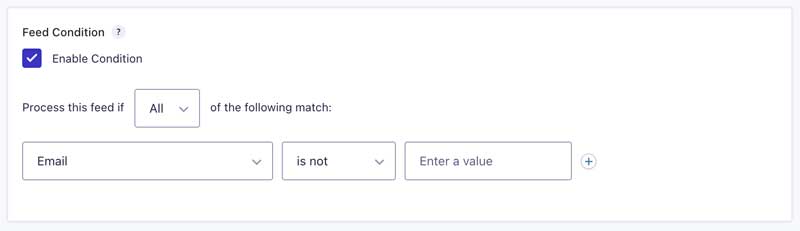
GravityCerts allows enabling Feed Conditional Logic by checking Feed Condition. After enabled this condition, you may send your feed depending whether any/all of the conditions specified are met.
Example Condition: Process this feed if the Email is not blank, ie “Empty”.
Creating Multiple Feeds
You may create multiple Agencyzoom feeds that will process one after the other starting from the top of the feeds list working down. The first feed in the list should be to Create/Update a lead or customer. Once the lead/customer is created additional feeds will process accordingly.

Example:
- First feed creates the new lead.
- Second feed creates an Opportunity for the new lead.
- Third feed adds a Note to the new lead.
Reorder Feeds
To reorder the feed processing order, use the 6 dots icon in the feed row to drag the feed up or down to the new position. Feed order is saved automatically.