
This article will walk you through the steps to connect your website to your Google Business / Gmail email account.
Why is this important?
Email providers like Google, Microsoft, Yahoo, etc. all require emails to be authenticated. This is no longer a ‘nice to have’. This is a requirement. If an email is not authenticated the email provider will flag, mark as spam, or block the email from being delivered. Websites are not email servers. While websites can send emails, these emails are not authenticated. So emails sent from a website are very unreliable. Connecting your website via SMTP authenticates emails sent from your website as legitimate, so they are reliably delivered.
How to connect Google / Gmail to your website
- Go to your website, Login, then visit the backend dashboard of your website.
- At the bottom of the black left admin menu click Post SMTP.
- Click the blue button Setup the Wizard.

- Choose Gmail API as your mailer option, then click Continue.

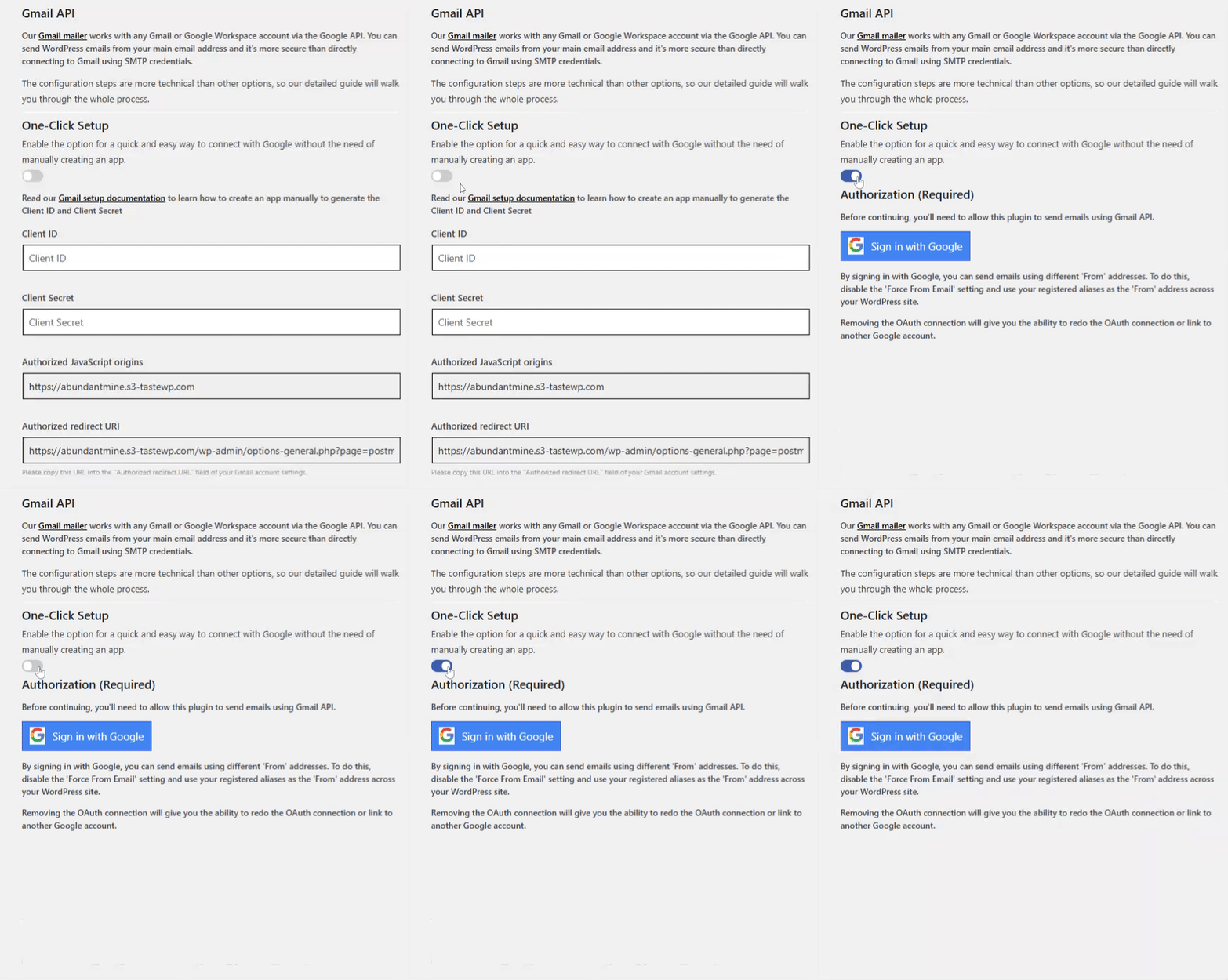
- Enable One-Click Setup, then continue with the Google authentication process:
- Scroll down to the Authorization section.
- Click on the Sign in with Google button.
- A google login window will appear. Log in using the Gmail account you wish to connect.
- Google then requests permission to share basic profile information. Click Continue.


- After authorizing, you will be redirected to your website. A confirmation message will appear, verifying that your Gmail account has been successfully linked.
The OAuth 2.0 authorization was successful. Ready to send e-mail. - The email address you connected will now be displayed with the Authorization section.